
ثبّت إضافة ووردبريس، اربطها بالمفتاح السري، وأضف حاسباتك بالكتلة أو بالكود المختصر مع «أضف للسلة» في ووكومرس.
إضافة PriceKit لووردبريس تجعل الحاسبة جزءًا من صفحتك نفسها، فتأخذ خطوط قالبك وألوانه. الطلبات تصل إلى طلبات العملاء في حسابك، ومع ووكومرس يمكن للزائر أن يضيف المنتج إلى السلة بالسعر الذي حسبته الحاسبة.
تحتاج: ووردبريس 6.0 أو أحدث، وPHP 7.4 أو أحدث، واشتراكًا احترافيًا نشطًا في PriceKit (الفترة التجريبية تكفي).
1. نزّل الإضافة وثبّتها
- في تطبيق الويب افتح المواقع والمطورين ← المفاتيح وإضافة ووردبريس.
- اضغط تحميل إضافة ووردبريس فيُنزَّل ملف pricekit-wordpress.zip.
- في لوحة ووردبريس: الإضافات ← أضف جديد ← رفع إضافة، اختر الملف، ثم فعّل الإضافة.
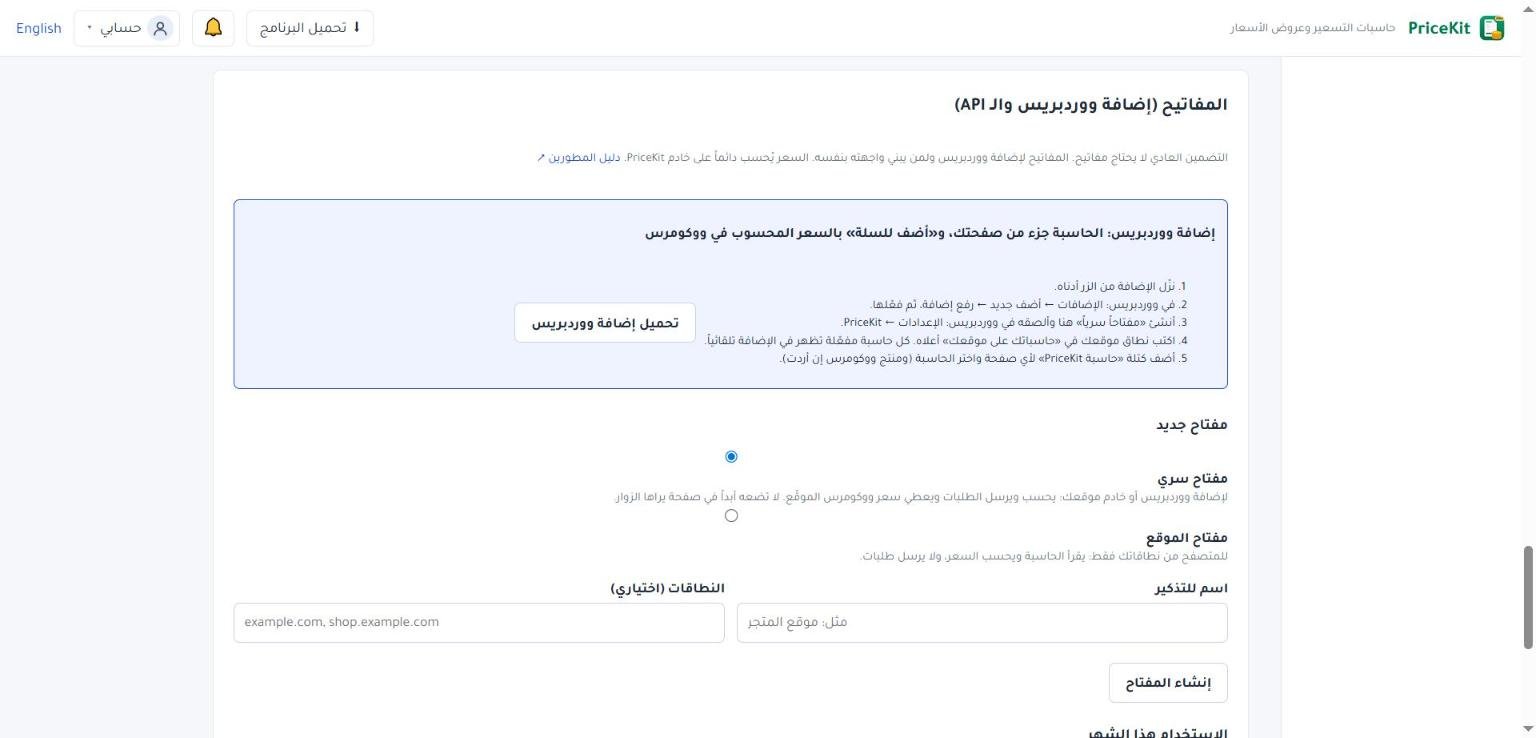
2. أنشئ المفتاح السري والصقه
- في البطاقة نفسها، تحت مفتاح جديد، اختر مفتاح سري.
- اكتب اسم للتذكير مثل «موقع المتجر»، ثم اضغط إنشاء المفتاح.
- اضغط نسخ. المفتاح السري يظهر مرة واحدة فقط.
- في ووردبريس افتح الإعدادات ← PriceKit، والصق المفتاح في حقل «المفتاح السري»، ثم احفظ.
- تظهر رسالة «الاتصال يعمل» مع عدد الحاسبات المتاحة، وتحتها قائمة حاسباتك.
لا تضع المفتاح السري أبدًا في صفحة يراها الزوار، ولا ترسله لأحد. إن فقدته ألغِه بزر إلغاء وأنشئ غيره؛ الإلغاء يوقف كل موقع يستخدم المفتاح فورًا.
اكتب أيضًا نطاق موقعك في حاسباتك على موقعك كما تطلب خطوات الإضافة في الصفحة (اقرأ حاسباتك على موقعك).
3. أضف الحاسبة إلى صفحة
بالكتلة: في محرر الصفحة أضف كتلة «حاسبة PriceKit»، ثم اختر الحاسبة من «اختر الحاسبة». في إعدادات الكتلة يمكنك أيضًا اختيار «لغة الحاسبة» و«منتج ووكومرس».
بالكود المختصر: انسخه من صفحة إعدادات الإضافة أو من زر نسخ الكود المختصر في تطبيق الويب، والصقه في أي مكان يقبل الأكواد المختصرة:
يقبل الكود المختصر إضافتين اختياريتين: lang="en" لاختيار اللغة (تعمل إذا سمحت إعدادات الحاسبة بتغيير اللغة)، وproduct="123" لربطها بمنتج ووكومرس برقمه.
قائمة حاسباتك تلقائية
كل حاسبة مفعّلة في حسابك تظهر في الإضافة تلقائيًا بآخر نسخة محفوظة منها، بالمعرّف نفسه دائمًا، فلا تحتاج تغيير الكود بعد التعديل. تحفظ الإضافة الحاسبة بضع دقائق لتسريع موقعك؛ لعرض آخر تعديل فورًا اضغط «تحديث الحاسبات الآن» في صفحة إعدادات الإضافة.
ووكومرس: «أضف للسلة» بالسعر المحسوب
اختر منتجًا في «منتج ووكومرس» داخل الكتلة. بعد أن يحسب الزائر السعر يظهر زر «أضف للسلة» بذلك السعر، والسعر موقّع من خادم PriceKit فلا يمكن للمتصفح تغييره. مثال: حاسبة طباعة لافتات تحسب $120 فيُضاف المنتج إلى السلة بـ $120. يعمل ذلك عندما تُظهر الحاسبة السعر النهائي، وعندما تكون عملة الحاسبة مثل عملة المتجر.
المظهر والحماية
- الحاسبة تأخذ خطوط قالبك وألوانه وتنسيقات موقعك. رسالة الشكر وبريد العميل تُضبط في PriceKit (اقرأ مظهر الحاسبة على موقعك).
- PriceKit يحمي الطلبات بحماية خفية. إن أردت فحصًا ظاهرًا اختر في «فحص الروبوتات (اختياري)» Cloudflare Turnstile أو Google reCAPTCHA v2 وأدخل مفاتيح موقعك.
إذا ظهرت للمدير رسالة «أضف المفتاح السري واختر الحاسبة» فتأكد من حفظ المفتاح ومن اختيار حاسبة في الكتلة. هذه الرسالة لا يراها الزوار.
Install the WordPress plugin, connect it with a secret key, and add calculators with the block or shortcode, with WooCommerce add to cart.
The PriceKit plugin for WordPress makes the calculator part of your page itself, so it takes your theme’s fonts and colours. Requests arrive in Customer requests in your account, and with WooCommerce visitors can add a product to the cart at the price the calculator worked out.
You need WordPress 6.0 or later, PHP 7.4 or later, and an active PriceKit Professional subscription (the trial is enough).
1. Download and install the plugin
- In the Web App open Websites & developers → Keys and WordPress plugin.
- Press Download the WordPress plugin; the file pricekit-wordpress.zip is downloaded.
- In WordPress: Plugins → Add New → Upload Plugin, choose the file, then activate the plugin.
2. Create the secret key and paste it
- In the same card, under New key, choose Secret key.
- Type a Name to remember such as “Shop website”, then press Create key.
- Press Copy. The secret key is shown only once.
- In WordPress open Settings → PriceKit, paste the key into “Secret key” and save.
- You see “The connection works” with the number of calculators available, and your calculators listed below.
Never put the secret key in a page visitors see, and never send it to anyone. If you lose it, press Revoke and create another; revoking stops every site that uses the key at once.
Also enter your website domain in Your calculators on your website, as the plugin steps on that page ask (see Your calculators on your website).
3. Add a calculator to a page
With the block: in the page editor add the “PriceKit calculator” block and pick the calculator under “Choose the calculator”. In the block settings you can also set the “Calculator language” and a “WooCommerce product”.
With the shortcode: copy it from the plugin’s settings page or with Copy the shortcode in the Web App, and paste it anywhere shortcodes work:
The shortcode accepts two optional extras: lang="en" to choose the language (works when the calculator’s settings let customers switch language), and product="123" to connect a WooCommerce product by its ID.
Your calculator list is automatic
Every active calculator in your account appears in the plugin automatically, at its latest saved version and always with the same ID, so the code never changes after an edit. The plugin keeps a calculator for a few minutes to keep your site fast; to show your latest change at once, press “Refresh the calculators now” on the plugin’s settings page.
WooCommerce: “Add to cart” at the calculated price
Choose a product under “WooCommerce product” in the block. After the visitor calculates the price, an “Add to cart” button adds the product at that price. The price is signed by PriceKit’s server, so a browser cannot change it. Example: a sign-printing calculator works out $120 and the product goes into the cart at $120. This works when the calculator shows the final price and its currency matches the store’s currency.
Look and protection
- The calculator follows your theme’s fonts, colours and site CSS. The thank-you message and customer e-mail are set in PriceKit (see The look on your website).
- PriceKit protects requests invisibly. For a visible check, choose Cloudflare Turnstile or Google reCAPTCHA v2 under “Robot check (optional)” and enter your own site’s keys.
If administrators see “add the secret key and choose the calculator”, check that the key is saved and that a calculator is chosen in the block. Visitors never see this message.
لم تجد جوابك؟Didn’t find your answer?
اطّلع على الأسئلة الشائعة، أو جرّب قالباً جاهزاً، أو راسلنا وسنرد عليك في أقرب وقت.See the FAQ, try a ready template, or write to us and we will answer as soon as we can.
الأسئلة الشائعةFAQ مكتبة القوالبTemplate library تواصل معناContact us