
كل حاسبة مفعّلة تظهر على موقعك تلقائيًا: حدّد نطاقاتك وإعدادات العرض، ثم الصق كود التضمين في أي موقع.
كل حاسبة مفعّلة في حسابك تظهر على موقعك تلقائيًا بآخر نسخة محفوظة منها: في ووردبريس بالكود المختصر أو الكتلة، وفي أي موقع آخر بكود تضمين من سطرين. لا تحتاج إنشاء رابط لكل حاسبة، ولا تحديثه بعد كل تعديل. هذه الميزة ضمن الاشتراك الاحترافي، والفترة التجريبية تشملها.
أين أجدها؟
من القائمة الجانبية: المواقع والمطورين ← موقعك والـ API، ثم بطاقة حاسباتك على موقعك في أعلى الصفحة.
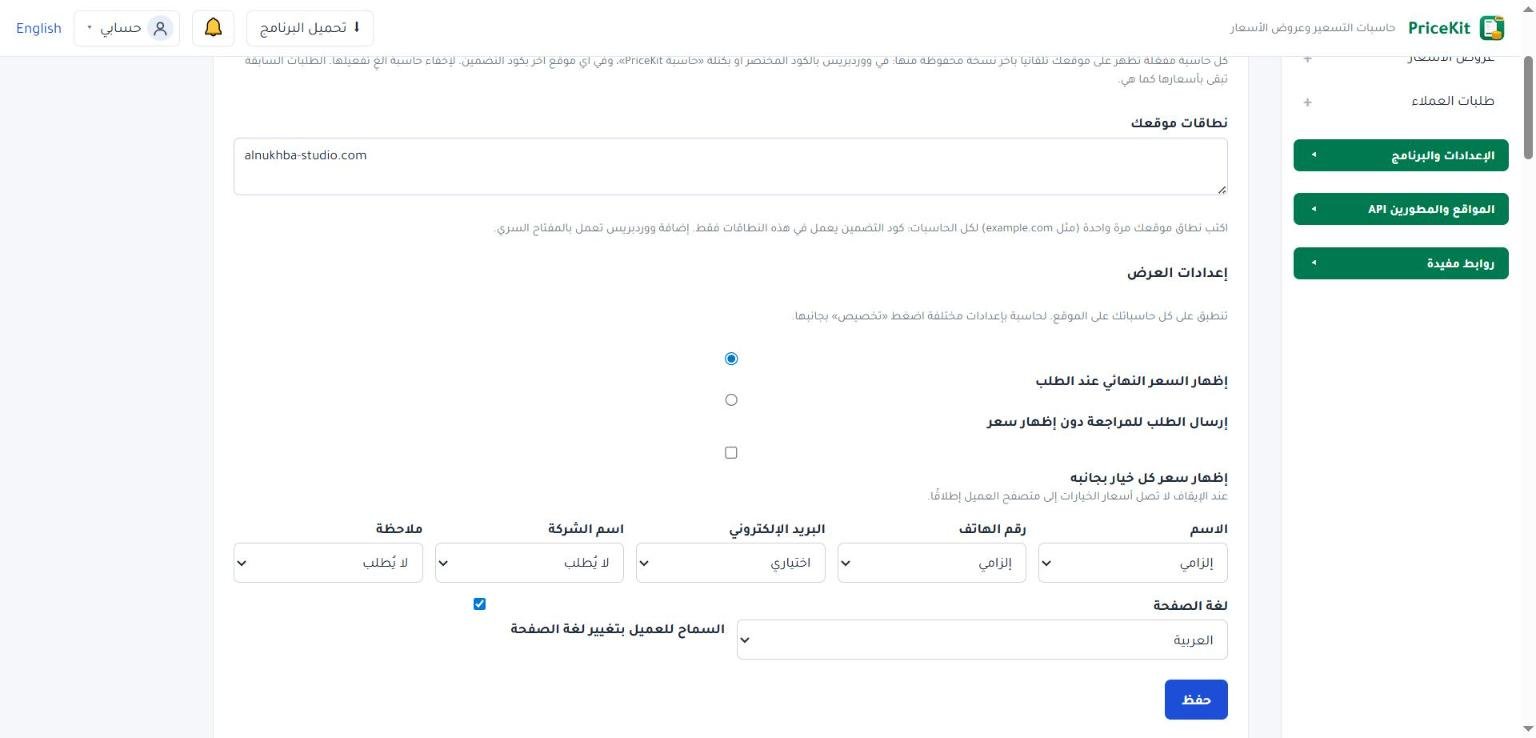
1. اكتب نطاقات موقعك مرة واحدة
- في نطاقات موقعك اكتب نطاق موقعك، نطاقًا في كل سطر، مثل
example.com. هذا يشمل www.example.com تلقائيًا، ولكل النطاقات الفرعية اكتب*.example.com. - اضغط حفظ.
كود التضمين يعمل داخل هذه النطاقات فقط، فلا يستطيع أحد نسخ حاسبتك ووضعها في موقع آخر. أما إضافة ووردبريس فتعمل بالمفتاح السري.
2. اضبط إعدادات العرض
في إعدادات العرض تختار ما ينطبق على كل حاسباتك في الموقع:
- إظهار السعر النهائي عند الطلب أو إرسال الطلب للمراجعة دون إظهار سعر.
- إظهار سعر كل خيار بجانبه.
- بيانات التواصل: لا يُطلب أو اختياري أو إلزامي لكل بند.
- لغة الصفحة والسماح للعميل بتغيير لغة الصفحة.
الافتراضي: السعر النهائي ظاهر، الاسم ورقم الهاتف إلزاميان، البريد اختياري، واللغة العربية. اضغط حفظ فتظهر الإعدادات على موقعك فورًا.
3. انسخ الكود لكل حاسبة
تحت الحاسبات الظاهرة على موقعك تجد كل حاسبة مفعّلة ومعها:
- الكود المختصر لووردبريس وزر نسخ الكود المختصر (اقرأ إضافة ووردبريس).
- كود التضمين لأي موقع آخر: افتحه واضغط نسخ الكود.
- زر تخصيص: لحاسبة تريد لها إعدادات مختلفة. فعّل إعدادات خاصة لهذه الحاسبة ثم غيّر ما تريد؛ تظهر بجانبها شارة مخصّصة.
كود التضمين سطران بهذا الشكل (انسخه دائمًا من الصفحة، لأن آخر الرابط خاص بحاسبتك):
<div data-pricekit="https://pricekit-clients.ghosounmedia.com/f/…"></div>
<script src="https://pricekit-clients.ghosounmedia.com/assets/embed.js" async></script>أين ألصق الكود؟
- ووردبريس: الأفضل إضافة PriceKit فتصبح الحاسبة جزءًا من الصفحة. أو أضف كتلة «HTML مخصص» والصق الكود فيها.
- Wix وShopify وWebflow وSquarespace وBlogger: استخدم عنصر «Embed / HTML / كود مخصص» والصق الكود فيه.
- موقع HTML عادي: الصق الكود داخل الصفحة في مكان الحاسبة.
تأخذ الحاسبة عرض المكان الذي وضعتها فيه ويتغير ارتفاعها مع محتواها. السعر يُحسب دائمًا على خادم PriceKit، ولا تصل معادلاتك أو أسعارك المخفية إلى صفحة موقعك.
التحديث والإخفاء
- كل حفظ للحاسبة يظهر على موقعك تلقائيًا دون أي خطوة إضافية.
- لإخفاء حاسبة من موقعك اضغط إلغاء التفعيل في صفحة الحاسبات. عند تفعيلها من جديد يعود الرابط نفسه، فلا تحتاج تغيير الكود.
- الطلبات السابقة تبقى بأسعارها وإصدارها كما هي.
لتغيير الألوان والخط ورسالة الشكر وبريد العميل اقرأ مظهر الحاسبة على موقعك. ولعرض حاسبة للتجربة فقط دون إرسال اقرأ تجربة فقط (بلا إرسال).
إذا انتهى اشتراك مدفوع تبقى حاسبات موقعك تعمل 7 أيام مهلة. بعدها (وفورًا عند انتهاء الفترة التجريبية) يرى الزائر «هذه الحاسبة غير متاحة حالياً. يرجى التواصل معنا.» دون أي ذكر للاشتراك. لا يُحذف شيء، وكل شيء يعود عند التجديد.
Every active calculator is on your website automatically: set your domains and display settings, then paste the embed code anywhere.
Every active calculator in your account is on your website automatically, at its latest saved version: in WordPress through the shortcode or block, and on any other site through a two-line embed code. There is no link to create per calculator and nothing to update after each edit. This is part of the Professional subscription, trial included.
Where is it?
In the side menu: Websites & developers → Website & API, then the Your calculators on your website card at the top.
1. Enter your website domains once
- In Your website domains, type your domain, one per line, such as
example.com. www.example.com is included automatically; for every sub-domain write*.example.com. - Press Save.
The embed code works only on these domains, so nobody can copy your calculator onto another site. The WordPress plugin works with the secret key instead.
2. Choose the display settings
Under Display settings you choose what applies to all your website calculators:
- Show the final price on request or Send the request for review without showing a price.
- Show the price next to each option.
- Contact details: Not asked, Optional or Required for each item.
- Page language and Let the customer switch the page language.
Defaults: final price shown, name and phone required, e-mail optional, Arabic. Press Save and the settings show on your site at once.
3. Copy the code for each calculator
Under Calculators on your website every active calculator is listed with:
- Its WordPress shortcode and a Copy the shortcode button (see WordPress plugin).
- Embed code for any other website: open it and press Copy code.
- Customise: for a calculator that needs different settings. Tick Settings of its own for this calculator and change what you need; it then shows a Customised badge.
The embed code is two lines like these (always copy it from the page: the end of the address is unique to your calculator):
<div data-pricekit="https://pricekit-clients.ghosounmedia.com/f/…"></div>
<script src="https://pricekit-clients.ghosounmedia.com/assets/embed.js" async></script>Where do I paste the code?
- WordPress: best with the PriceKit plugin, so the calculator becomes part of the page. Or add a “Custom HTML” block and paste the code.
- Wix, Shopify, Webflow, Squarespace, Blogger: use an “Embed / HTML / custom code” element and paste the code.
- Plain HTML site: paste the code where the calculator should appear.
The calculator takes the width of the place you give it and its height follows its content. Prices are always calculated on PriceKit’s server; your formulas and hidden prices never reach your site’s page.
Updating and hiding
- Every save of the calculator shows on your site by itself, with no extra step.
- To hide a calculator, press Deactivate on the Calculators page. Activate it again and the same link comes back, so the code does not change.
- Earlier requests keep their prices and version.
To change colours, font, the thank-you message and the customer e-mail, see The look on your website. To show a calculator for trying only, see Try only (no sending).
When a paid subscription ends, your website calculators keep working for a 7-day grace period. After that (and at once when a trial ends) visitors see “This calculator is not available at the moment. Please contact us.” with no word about the subscription. Nothing is deleted, and everything works again when you renew.
لم تجد جوابك؟Didn’t find your answer?
اطّلع على الأسئلة الشائعة، أو جرّب قالباً جاهزاً، أو راسلنا وسنرد عليك في أقرب وقت.See the FAQ, try a ready template, or write to us and we will answer as soon as we can.
الأسئلة الشائعةFAQ مكتبة القوالبTemplate library تواصل معناContact us