
صِف الشكل الذي تريده لحاسبتك على موقعك، فيكتب الذكاء الاصطناعي كود CSS مفحوصاً تراه في المعاينة قبل الحفظ.
تستطيع تغيير ألوان حاسبتك على موقعك وزواياها وخطها من خيارات بسيطة. وإذا أردت لمسات أكثر، مثل ظل حول الحاسبة أو مسافات أكبر بين الأسئلة، يكتب لك الذكاء الاصطناعي كود CSS من وصف بسيط، وترى أثره في المعاينة قبل الحفظ. لا تحتاج أي معرفة بالبرمجة.
الخطوات
- في تطبيق الويب افتح موقعك والـ API من القائمة الجانبية.
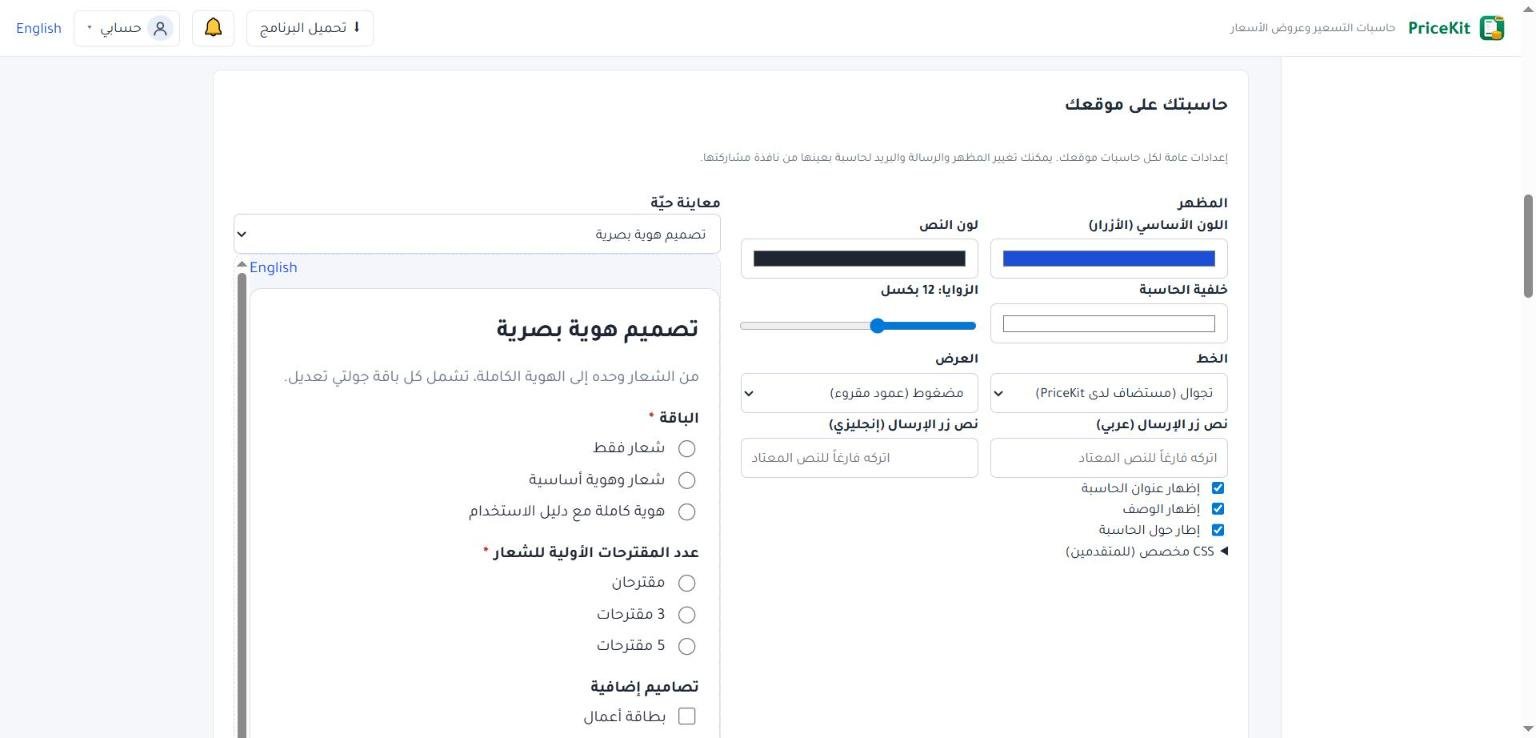
- انزل إلى قسم حاسبتك على موقعك، ثم إلى جزء المظهر.
- افتح CSS مخصص (للمتقدمين) واضغط اكتب CSS بالذكاء الاصطناعي.
- في خانة الشكل الذي تريده صِف ما تريده: الألوان، الزوايا، الظلال، المسافات، حجم الخط. مثال: «أزرار بلون #0F766E بزوايا دائرية، خلفية رمادية فاتحة، ظل خفيف حول الحاسبة».
- اضغط اكتب التصميم. إن كان شيء غير واضح تظهر أسئلة قصيرة؛ أجب ثم اضغط أرسل الإجابات.
- عندما يجهز التصميم يظهر الكود بعد فحصه. اضغط استخدام هذا التصميم: يوضع في خانة CSS المخصص وتتحدث معاينة حيّة بجانبه.
- إذا أعجبك الشكل اضغط حفظ أسفل القسم. يظهر الشكل على موقعك فوراً.
لا يُحفظ شيء قبل أن تضغط حفظ. إذا أغلقت الصفحة قبل ذلك يبقى الشكل القديم.
ابدأ بالخيارات البسيطة
قبل الذكاء الاصطناعي جرّب حقول المظهر نفسها: اللون الأساسي (الأزرار)، لون النص، خلفية الحاسبة، الزوايا، الخط من قائمة الخطوط، العرض، ونص زر الإرسال بالعربية والإنجليزية. الذكاء الاصطناعي مفيد لما يتجاوز هذه الخيارات.
ما المسموح في الكود؟
يفحص PriceKit كل كود قبل استخدامه، سواء كتبه الذكاء الاصطناعي أو كتبته بنفسك. المسموح تنسيقات عادية فقط: لا روابط خارجية، ولا صور أو خطوط من مواقع أخرى (غير مسموح: @import و url() و @font-face والعلامتان < و )، وحجم الكود حتى 20000 حرف. لذلك اختر الخط من قائمة الخط بدل طلبه في الوصف.
شكل خاص لحاسبة واحدة
الإعدادات في موقعك والـ API عامة لكل حاسبات موقعك. لتغيير شكل حاسبة واحدة افتح نافذة مشاركة مع العميل لها، وفعّل مظهر خاص لهذه الحاسبة؛ ستجد المحرر نفسه وفيه زر الذكاء الاصطناعي.
ملاحظات
- تظهر المعاينة الحية عندما تكون لديك حاسبة مفعّلة.
- كل تصميم يُحسب ضمن الحد اليومي نفسه لبناء الحاسبات بالذكاء الاصطناعي. انظر ابنِ حاسبة بالذكاء الاصطناعي.
- يكتب الذكاء الاصطناعي تصميماً للحاسبة فقط، ولا يجيب عن أسئلة عامة.
- لمعرفة كل خيارات المظهر ورسالة الشكر انظر مظهر الحاسبة على موقعك.
Describe the look you want for your website calculator and AI writes checked CSS that you see in the preview before saving.
You can change your website calculator’s colours, corners and font with simple options. For more, such as a shadow around the calculator or more space between the questions, AI writes the CSS code from a plain description, and you see the result in the preview before saving. No coding knowledge is needed.
Steps
- In the Web App, open Website & API from the side menu.
- Scroll to Your calculator on your website, then to the Look part.
- Open Custom CSS (advanced) and press Write the CSS with AI.
- In The look you want, describe it: colours, corners, shadows, spacing, font size. Example: “Buttons in #0F766E with round corners, a light grey background, a soft shadow around the calculator.”
- Press Write the design. If something is unclear you get short questions; answer them and press Send the answers.
- When the design is ready, the checked code is shown. Press Use this design: it goes into the Custom CSS box and the Live preview next to it updates.
- If you like it, press Save at the bottom of the section. The look shows on your site at once.
Nothing is saved until you press Save. If you leave the page first, the old look stays.
Start with the simple options
Before using AI, try the look fields themselves: Main colour (buttons), Text colour, Calculator background, corners, Font from the font list, Width, and the send button text in Arabic and English. AI is useful for what goes beyond these options.
What the code may contain
PriceKit checks all custom CSS before it is used, whether AI or you wrote it. Only plain styles are allowed: no outside links, no images or fonts from other sites (not allowed: @import, url(), @font-face, < and ), and at most 20000 characters. So pick the font from the Font list instead of asking for it in the description.
A separate look for one calculator
The settings on Website & API apply to all your website calculators. To style one calculator differently, open its Share with customer window and turn on A look of its own for this calculator; the same editor, with the AI button, appears there.
Notes
- The live preview appears once you have an active calculator.
- Each design counts towards the same daily limit as building calculators with AI. See Build a calculator with AI.
- The AI only writes a design for the calculator; it does not answer general questions.
- For all look options and the thank-you message, see Your calculator’s look on your website.
لم تجد جوابك؟Didn’t find your answer?
اطّلع على الأسئلة الشائعة، أو جرّب قالباً جاهزاً، أو راسلنا وسنرد عليك في أقرب وقت.See the FAQ, try a ready template, or write to us and we will answer as soon as we can.
الأسئلة الشائعةFAQ مكتبة القوالبTemplate library تواصل معناContact us