
احسب أرقامًا وسيطة من إجابات العميل، مثل الصفحات من عدد الكلمات أو أيام التنفيذ، واعرض النتائج لك أو للعميل بالمخرجات.
القيمة المحسوبة رقم وسيط يحسبه PriceKit من إجابات العميل أو من الأسعار، مثل عدد الصفحات من عدد الكلمات. تستخدمها في التسعير أو في القواعد، أو تعرضها عبر المخرجات.
أنشئ قيمة محسوبة
- افتح تبويب القيم المحسوبة واضغط إضافة قيمة محسوبة.
- اكتب اسم القيمة واختر نوع القيمة: رقم أو مبلغ أو نسبة مئوية أو مدة (ومع المدة تختار الوحدة: دقيقة، ساعة، يوم، أسبوع).
- تحت طريقة الحساب اختر الطرف الأول: قيمة (حقل، أو قيمة محسوبة أخرى، أو بند سعر، أو مجموع) أو رقم تكتبه.
- اختر العملية: + جمع أو − طرح أو × ضرب أو ÷ قسمة، أو بدون عملية لنسخ قيمة واحدة، ثم الطرف الثاني.
- اختر التقريب: بدون تقريب، أو تقريب مع عدد الخانات، أو تقريب للأعلى إلى عدد صحيح، أو تقريب للأسفل إلى عدد صحيح.
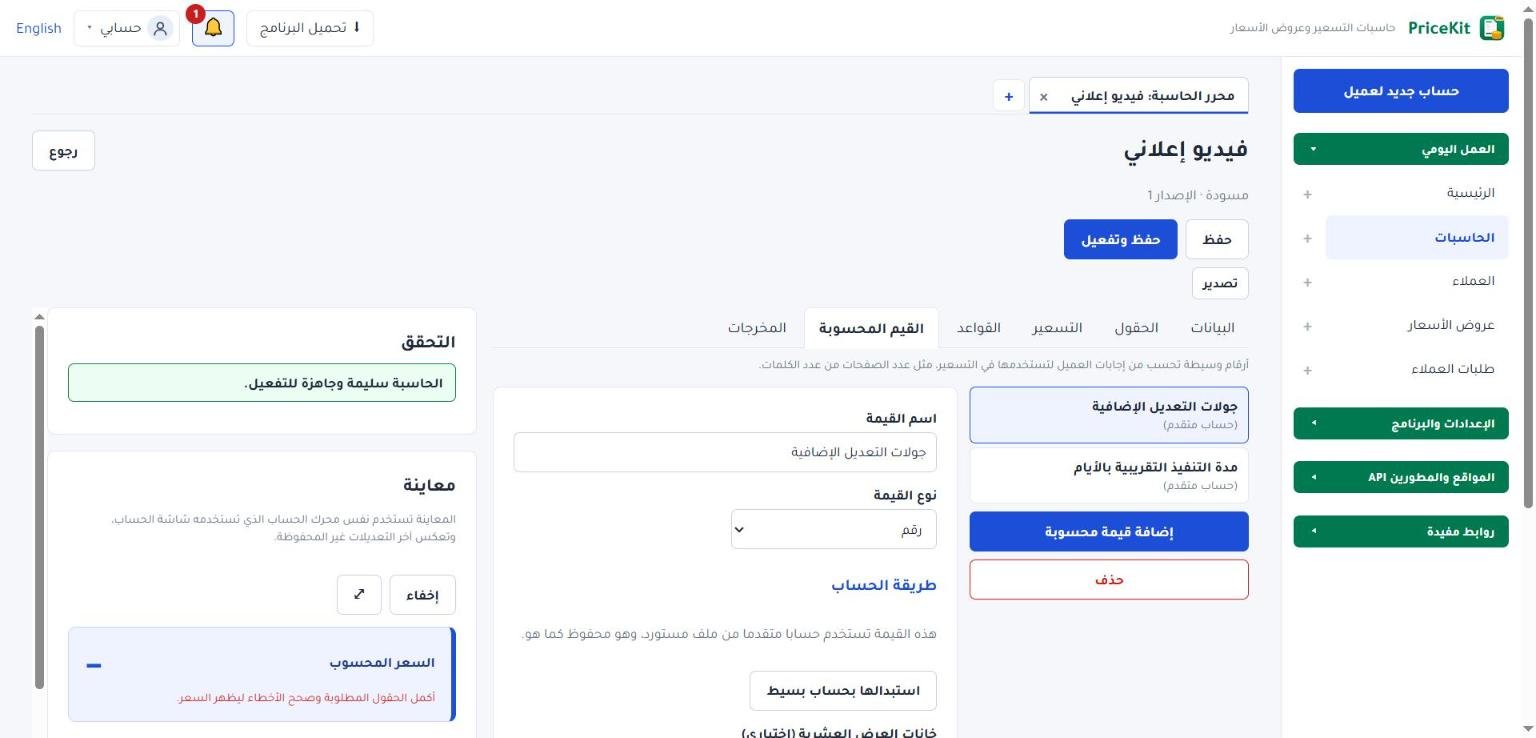
كل قيمة فيها عملية واحدة. للمعادلات الأطول، أنشئ قيمة ثم استخدمها داخل قيمة أخرى.
متى يمكن استخدام القيمة في التسعير؟
- القيمة المحسوبة من الحقول فقط (أو من قيم مثلها) تُحسب قبل الأسعار، فتظهر في الكمية من في بنود التسعير، وفي من قيمة رقمية للنسب، وفي شروط القواعد.
- القيمة التي تستخدم بند سعر أو مجموعًا تُحسب بعد الأسعار، فتستخدمها في المخرجات أو في قيم أخرى فقط.
مثال 1: سعر حسب عدد الصفحات
خدمة كتابة محتوى تسعّر الصفحة بـ $12، والعميل يكتب عدد الكلمات. أنشئ قيمة «عدد الصفحات» من نوع رقم: «عدد الكلمات» ÷ قسمة 250، مع تقريب للأعلى إلى عدد صحيح. ثم في بند سعر لكل وحدة اختر الكمية من: «عدد الصفحات»، والسعر 12. نص من 1,100 كلمة = 4.4 ← 5 صفحات = $60.
مثال 2: أيام التنفيذ
أنشئ قيمة «أيام التنفيذ» من نوع مدة بوحدة يوم: «عدد المنشورات» ÷ قسمة 4، مع التقريب للأعلى. 10 منشورات = 2.5 ← 3 أيام. ثم اعرضها بمخرج كما في الأسفل.
لمدة تسليم متوقعة تظهر للعميل أيضًا في صفحة الحاسبة وعرض السعر، استخدم تبويب مدة التسليم: فعّل يدخل في مدة التسليم في الحقل المناسب، أو اضغط إضافة مدة تسليم ثابتة في تبويب البيانات.
مثال 3: رقم داخلي لك
قيمة «عمولة المندوب» من نوع مبلغ: السعر المحسوب × ضرب 0.1. لطلب بـ $170 تكون $17. اعرضها بمخرج يظهر لك فقط.
المخرجات
المخرج يعرض قيمة بعد الحساب. افتح تبويب المخرجات واضغط إضافة مخرج، ثم:
- اسم المخرج: مثل «مدة التنفيذ».
- القيمة المعروضة: حقل، أو قيمة محسوبة، أو بند سعر، أو المجموع الأساسي أو المجموع بعد التعديلات أو السعر المحسوب.
- يظهر لك أثناء الحساب: يظهر في نتيجة الحساب عندك وفي المعاينة.
- يظهر للعميل في المستند: يظهر للعميل في مستند عرض السعر.
- خانات العرض العشرية (اختياري).
في صفحة الحاسبة التي تشاركها أو على موقعك يرى العميل السعر النهائي فقط، ولا تظهر له المخرجات هناك.
إذا قسمت على حقل وكتب العميل فيه صفرًا، يظهر خطأ «قسمة على صفر» ولا يُحسب السعر. حدد للحقل أقل قيمة مثل 1.
Work out in-between numbers from the customer's answers, such as pages from a word count or days of work, and show results to you or the customer with outputs.
A calculated value is an in-between number that PriceKit works out from the customer’s answers or from the prices, such as pages from a word count. You can use it in pricing or in rules, or show it with Outputs.
Create a calculated value
- Open the Calculated values tab and click Add calculated value.
- Enter a Value name and choose a Value type: Number, Money, Percentage or Duration (a duration also needs a Unit: minutes, hours, days or weeks).
- Under How it is calculated, set the first part: a Value (a field, another calculated value, a price item or a subtotal) or a Number you type.
- Pick the operation: + add, − subtract, × multiply or ÷ divide, or No operation to copy a single value, then the second part.
- Choose the Rounding: No rounding, Round with Decimal places, Round up to a whole number or Round down to a whole number.
Each value holds one operation. For a longer formula, create a value and use it inside another one.
When can a value be used in pricing?
- A value built only from fields (or from other such values) is worked out before the prices, so it appears in Quantity from on price items, in From a number value for percentages, and in rule conditions.
- A value that uses a price item or a subtotal is worked out after the prices, so use it only in outputs or in other values.
Example 1: price by number of pages
A content-writing service charges $12 per page, and the customer enters a word count. Create a Number value “Pages”: “Word count” ÷ divide 250, with Round up to a whole number. Then, in a Price per unit item, set Quantity from to “Pages” and the price to 12. A 1,100-word text = 4.4 → 5 pages = $60.
Example 2: days of work
Create a Duration value “Days of work” in days: “Number of posts” ÷ divide 4, rounded up. 10 posts = 2.5 → 3 days. Then show it with an output, as below.
For an expected delivery time that the customer also sees on the calculator page and the quote, use the Delivery time tab instead: turn on Used in delivery time on the right field, or click Add a fixed delivery time on the Details tab.
Example 3: an internal figure for you
A Money value “Sales commission”: Calculated price × multiply 0.1. For a $170 job it is $17. Show it with an output that only you see.
Outputs
An output shows a value after the calculation. Open the Outputs tab, click Add output, then set:
- Output label: for example “Days of work”.
- Value shown: a field, a calculated value, a price item, the Base subtotal, the Subtotal after adjustments or the Calculated price.
- Shown to you while calculating: it appears in your calculation result and in the preview.
- Shown to the customer on documents: the customer sees it on the quote document.
- Display decimals (optional).
On a calculator page you share or on your website, the customer sees the final price only; outputs are not shown there.
If you divide by a field and the customer enters zero in it, you get a “Division by zero” error and no price. Give the field a Minimum such as 1.
لم تجد جوابك؟Didn’t find your answer?
اطّلع على الأسئلة الشائعة، أو جرّب قالباً جاهزاً، أو راسلنا وسنرد عليك في أقرب وقت.See the FAQ, try a ready template, or write to us and we will answer as soon as we can.
الأسئلة الشائعةFAQ مكتبة القوالبTemplate library تواصل معناContact us