
اصنع نسخًا احتياطية لحسابك واستعدها، وصدّر حاسباتك إلى ملفات .pricekit واستوردها، وافتح الملفات بنقرة مزدوجة في ويندوز.
تشرح هذه المقالة كيف تحمي بياناتك بالنسخ الاحتياطية، وكيف تنقل حاسبة من حساب إلى آخر أو من جهاز إلى آخر بملف.
الفرق بين النسخة الاحتياطية وملف الحاسبة
- النسخة الاحتياطية تشمل كل بيانات الحساب: الحاسبات والعملاء وعروض الأسعار والإعدادات.
- ملف الحاسبة (.pricekit) يحتوي طريقة التسعير فقط: الحقول والأسعار والقواعد، ولا يحتوي أي عملاء أو عروض أسعار أو مدفوعات.
النسخ الاحتياطية على الويب
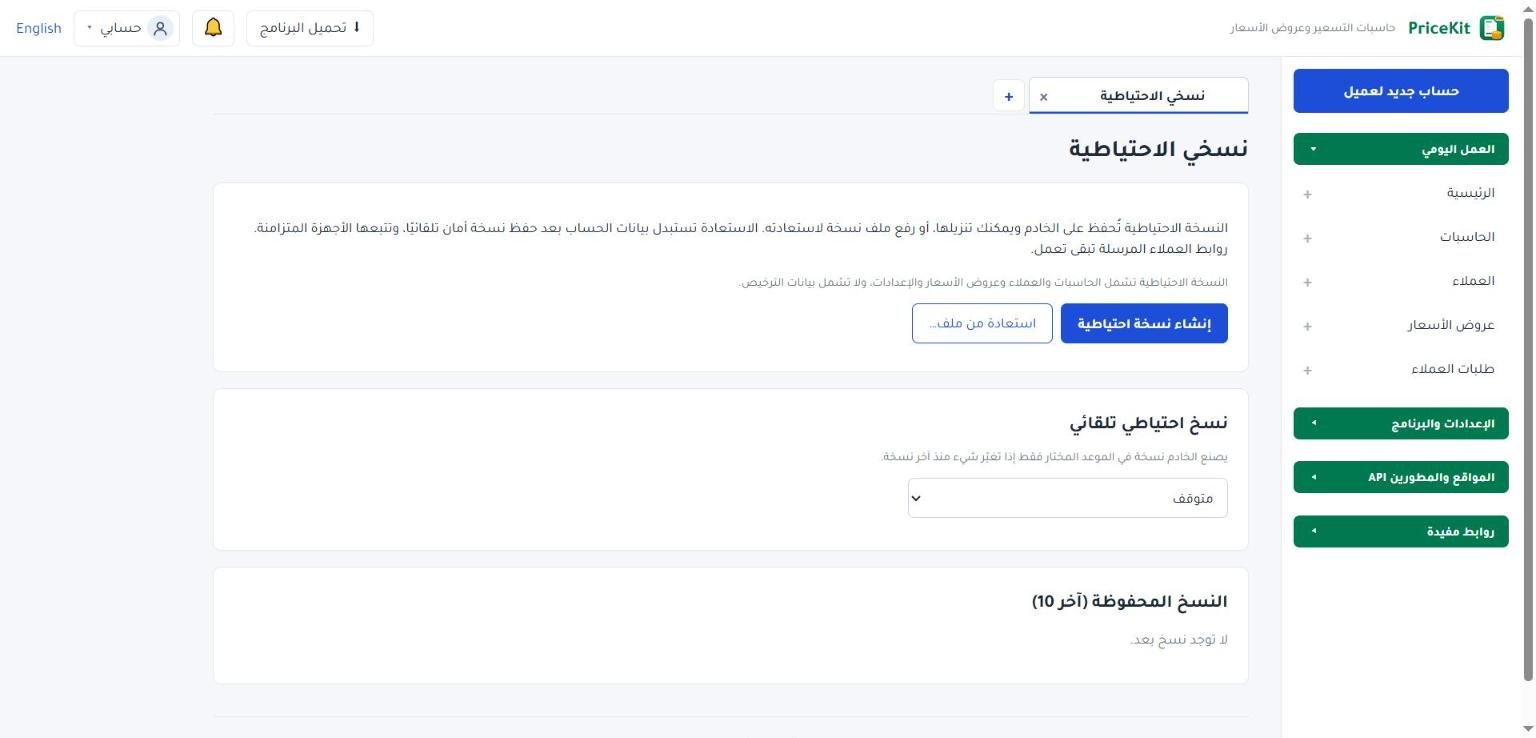
افتح الإعدادات، ثم في بطاقة البيانات والنسخ الاحتياطي اضغط نسخي الاحتياطية.
- اضغط إنشاء نسخة احتياطية لعمل نسخة الآن. تُحفظ على الخادم وتظهر في الجدول.
- في نسخ احتياطي تلقائي اختر يوميًا أو أسبوعيًا أو شهريًا. يصنع الخادم نسخة في الموعد فقط إذا تغيّر شيء منذ آخر نسخة.
- يحتفظ الجدول بآخر 10 نسخ. اضغط تنزيل لحفظ أي نسخة على جهازك.
الاستعادة من نسخة احتياطية
- اضغط استعادة من نسخة احتياطية بجانب نسخة في الجدول، أو استعادة من ملف… لرفع نسخة نزّلتها سابقًا من الحساب نفسه.
- اقرأ رسالة التأكيد، ثم اضغط استعادة من نسخة احتياطية.
الاستعادة تستبدل كل بيانات الحساب الحالية بالنسخة المختارة. قبلها تُحفظ تلقائيًا نسخة أمان من بياناتك الحالية، وتظهر في الجدول باسم نسخة أمان قبل الاستعادة.
بعد الاستعادة تتبعها الأجهزة المتزامنة في المزامنة التالية، وروابط العملاء المرسلة تبقى تعمل. لا يمكن استعادة نسخة تخص حسابًا آخر.
تصدير حاسبة إلى ملف
- افتح الحاسبات.
- اضغط تصدير بجانب الحاسبة. لتصدير عدة حاسبات معًا حدّدها أولًا ثم اضغط تصدير في الشريط الذي يظهر.
- اختر صيغة الملف: ملف PriceKit (.pricekit) أو ملف JSON (.json)، ثم اضغط متابعة.
إذا كنت داخل محرر الحاسبة فاحفظ تعديلاتك أولًا قبل التصدير.
استيراد حاسبة من ملف
- في صفحة الحاسبات ابحث عن بطاقة استيراد حاسبة.
- اضغط اختر ملف حاسبة واختر ملفًا بصيغة .pricekit أو .pricekit-template أو .json.
- تظهر معاينة: اسم الحاسبة وعدد الحقول وبنود السعر والقواعد والعملة. اضغط استيراد.
تُضاف كحاسبة جديدة مستقلة بحالة «مسودة»، ثم فعّلها عندما تصبح جاهزة. القوالب التي تنزّلها من مكتبة القوالب تأخذ عملتك الافتراضية، وأسعارها أمثلة فقط. راجع القوالب الجاهزة.
في برنامج ويندوز
- فتح ملف بنقرة مزدوجة: بعد تثبيت البرنامج تظهر ملفات .pricekit و.pricekit-template بأيقونة PriceKit. انقر على الملف مرتين فيفتح البرنامج ويعرض المعاينة. لا يُضاف شيء قبل أن تؤكد، والحاسبة تُضاف كمسودة.
- نسخة احتياطية على جهازك: من الإعدادات ← البيانات والنسخ الاحتياطي اضغط إنشاء نسخة احتياطية لحفظ ملف .pricekit-backup على حاسوبك، أو استعادة من نسخة احتياطية لاستعادته. هذا الملف خاص بالبرنامج ويختلف عن نسخ الويب.
النسخ الاحتياطي والتصدير غير متاحين عندما يكون الحساب للقراءة فقط. راجع التجربة والاشتراك.
Back up and restore your account, export and import calculators as .pricekit files, and open them with a double-click on Windows.
This article shows how to protect your data with backups, and how to move a calculator between accounts or computers with a file.
Backup or calculator file?
- A backup holds all the account data: calculators, customers, quotes and settings.
- A calculator file (.pricekit) holds the pricing structure only: fields, prices and rules. It never includes customers, quotes or payments.
Backups on the web
Open Settings, then on the Data & backup card click My backups.
- Click Create backup to make one now. It is kept on the server and appears in the table.
- Under Automatic backups, pick Daily, Weekly or Monthly. The server makes a backup on schedule only when something changed since the last one.
- The table keeps the last 10 backups. Click Download to save any of them to your computer.
Restore a backup
- Click Restore from backup next to a backup in the table, or Restore from a file… to upload one you downloaded earlier from the same account.
- Read the confirmation message, then click Restore from backup.
Restoring replaces all current account data with the chosen backup. A safety copy of your current data is saved automatically first and appears in the table as Safety copy before a restore.
After a restore, synced devices follow at their next sync, and customer links you already sent keep working. A backup from another account cannot be restored.
Export a calculator to a file
- Open Calculators.
- Click Export next to the calculator. To export several at once, select them first and click Export in the bar that appears.
- Choose the File format: PriceKit file (.pricekit) or JSON file (.json), then click Continue.
If you are in the calculator editor, save your changes before exporting.
Import a calculator from a file
- On the Calculators page, find the Import calculator card.
- Click Choose a calculator file and pick a .pricekit, .pricekit-template or .json file.
- A preview shows the calculator’s name and its number of fields, price items, rules and currency. Click Import.
It is added as a new, independent calculator in Draft status; activate it when it is ready. Templates you download from the template library take your default currency, and their prices are only examples. See Ready templates.
In the Windows program
- Double-click a file: once the program is installed, .pricekit and .pricekit-template files show the PriceKit icon. Double-click one and the program opens with the preview. Nothing is added until you confirm, and the calculator is added as a draft.
- A backup on your computer: in Settings → Data & backup, click Create backup to save a .pricekit-backup file on your computer, or Restore from backup to restore one. This file belongs to the program and is different from web backups.
Backups and exports are not available while the account is read-only. See Free trial and subscription.
لم تجد جوابك؟Didn’t find your answer?
اطّلع على الأسئلة الشائعة، أو جرّب قالباً جاهزاً، أو راسلنا وسنرد عليك في أقرب وقت.See the FAQ, try a ready template, or write to us and we will answer as soon as we can.
الأسئلة الشائعةFAQ مكتبة القوالبTemplate library تواصل معناContact us