
صِف خدمتك أو ارفع قائمة أسعارك، أجب عن أسئلة الذكاء الاصطناعي، ثم راجع الحاسبة وأنشئها كمسودة.
بدل أن تبني الحاسبة حقلاً حقلاً، اكتب وصف خدمتك وأسعارها أو ارفع قائمة أسعارك، فيبني لك الذكاء الاصطناعي حاسبة كاملة تراجعها وتجرّبها قبل حفظها. الميزة في تطبيق الويب ضمن الاشتراك الاحترافي، والفترة التجريبية تشملها بحدّ يومي أقل.
الخطوات
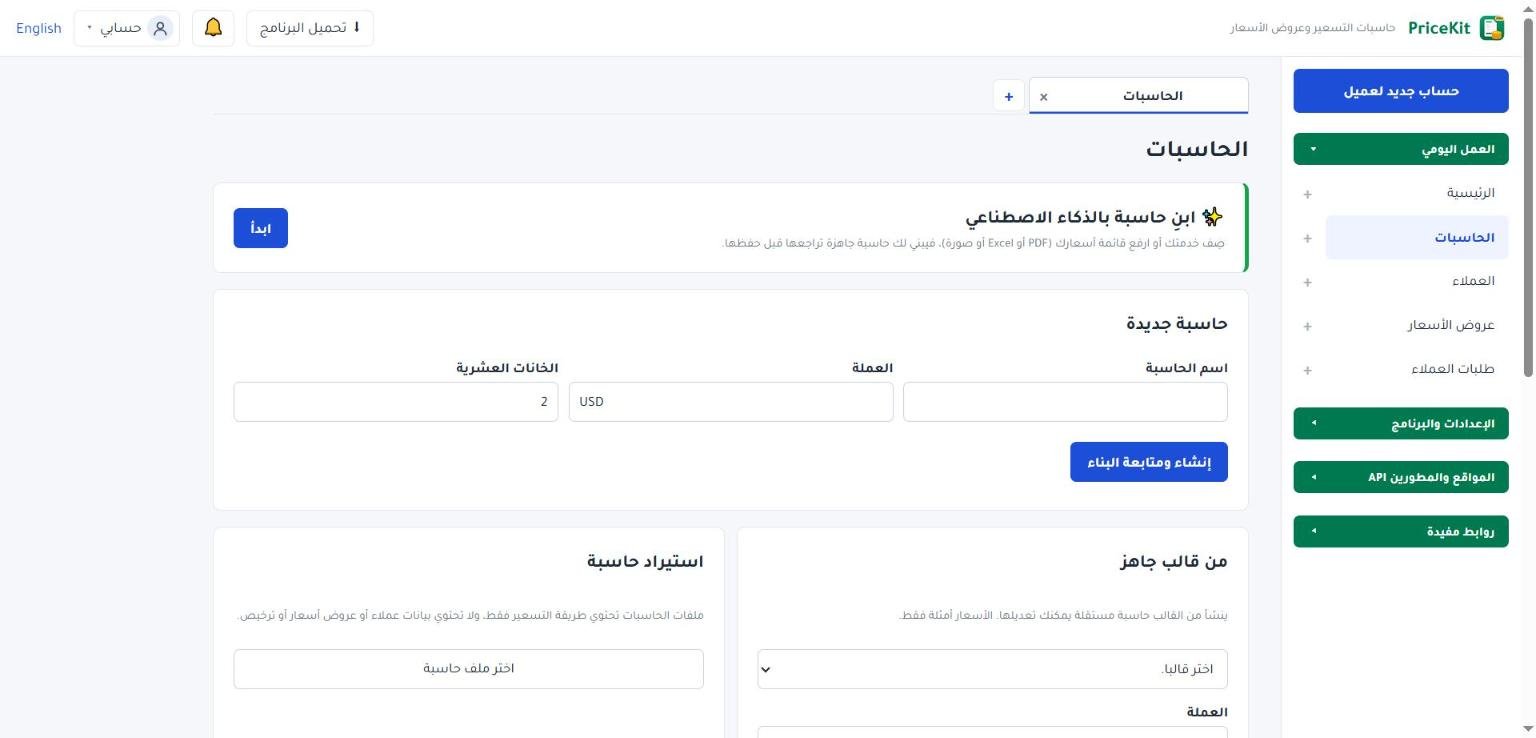
- افتح صفحة الحاسبات. في أعلاها بطاقة ابنِ حاسبة بالذكاء الاصطناعي؛ اضغط ابدأ.
- في خانة الوصف أو قائمة الأسعار اكتب خدمتك وأسعارها، مثل: «تنظيف منازل. شقة $150، فيلا $400. كل غرفة إضافية $40. تنظيف عميق +30%».
- أو اضغط ارفع ملفاً واختر قائمة أسعارك: PDF أو Excel (xlsx) أو CSV أو صورة. يمكنك الجمع بين الوصف والملف.
- اضغط ابنِ الحاسبة. قد يستغرق البناء حتى دقيقة.
- إذا كان سعر أو تفصيل غير واضح، تظهر لك أسئلة قصيرة مع إجابات مقترحة غالباً. اختر إجابة أو اكتب غيرها، ثم اضغط أرسل الإجابات. قد يتكرر ذلك حتى ثلاث جولات، فالذكاء الاصطناعي يسأل ولا يخمّن الأسعار.
- في شاشة المراجعة ترى الحاسبة كما فُهمت: صحّح أي اسم أو سعر في قسم الحقول والأسعار، وجرّبها بإجابات حقيقية في قسم المعاينة.
- اقرأ قائمة راجِع هذه النقاط: إن ظهرت، ثم اضغط أنشئ الحاسبة.
تُحفظ الحاسبة كمسودة جديدة، ويفتح المُنشئ عليها مع تنبيه يذكّرك بمراجعتها. لا يراها عملاؤك قبل أن تفعّلها (انظر حالات الحاسبة). الترتيب والأوصاف والقواعد تعدّلها في المُنشئ بعد الإنشاء.
إذا لم تعجبك النتيجة اضغط عدّل الوصف: يبقى وصفك وملفك، فتوضّح ما يلزم وتبني من جديد.
ماذا يستطيع أن يبني؟
- أسئلة الحاسبة: اختيار من قائمة، أرقام مثل المساحة أو عدد الغرف، ونعم/لا.
- سعر لكل خيار، وسعر للوحدة (مثل $5 للمتر)، وشرائح حسب الكمية.
- إضافات نعم/لا بمبلغ ثابت أو بنسبة زيادة أو خصم، ونسب على الإجمالي مثل الضريبة.
- سعر خيار مضروباً في رقم، مثل سعر الصورة × عدد الصور.
- قيم محسوبة بمعادلات قصيرة (مثل الطول × العرض) وأسعار مبنية عليها.
- قواعد تُظهر أسئلة أو تخفيها، وبنود سعر تُضاف بشرط.
- الحد الأدنى للطلب، ويسألك عن أساسه إن لم يكن واضحاً.
نقاط تظهر في المراجعة
- إن لم تُذكر عملة تُستخدم عملة حسابك الافتراضية.
- الأرقام الموجودة في ما أرسلته ولم تُستخدم في الحاسبة، حتى لا يفوتك سعر.
- تنبيه عند قراءة الأسعار من صورة، لأن القراءة من الصور قد تخطئ.
- إن كان الملف طويلاً يُقرأ جزؤه الأول فقط.
ما لا يفعله
- يبني حاسبات أسعار فقط. الدردشة والأسئلة العامة تحصل على رسالة ثابتة من PriceKit، ولا تُحسب محاولة.
- لا يعدّل حاسبة موجودة، ولا يلمس عروض الأسعار أو العملاء أو الطلبات.
- لا يحسب الأسعار بنفسه: محرك PriceKit هو الذي يحسب، وكل حاسبة تُفحص قبل أن تظهر لك.
- يرفض الحاسبات الخاصة بنشاط مخالف للقانون أو لشروط الاستخدام.
الحدود والخصوصية
- ملف واحد حتى 10 ميغابايت، وملف PDF حتى 20 صفحة، والصورة حتى 5 ميغابايت.
- للبناء حدّ يومي لكل حساب. في الفترة التجريبية تعرض النافذة حدّك اليومي وحدّ الاشتراك الاحترافي وما استخدمته اليوم. بناء واحد في كل مرة.
- المحاولات التي تفشل بسبب PriceKit أو خدمة الذكاء الاصطناعي لا تُحسب.
- يُرسل فقط ما تكتبه أو ترفعه في هذه النافذة إلى خدمة ذكاء اصطناعي خارجية، ولا تُرسل بيانات عملائك أبداً. الملفات لا تُحفظ.
- إن كان حسابك للقراءة فقط (انتهى الاشتراك) تتوقف الميزة حتى التجديد. انظر الاشتراك.
يمكن للذكاء الاصطناعي أيضاً أن يصمّم شكل حاسبتك على موقعك: شكل حاسبة الموقع بالذكاء الاصطناعي.
Describe your service or upload a price list, answer the AI's questions, then review and create the calculator as a draft.
Instead of building a calculator field by field, describe your service and its prices or upload your price list, and AI builds a complete calculator that you review and try before saving. The feature is in the Web App with the Professional subscription; the trial includes it with a lower daily limit.
Steps
- Open the Calculators page. At the top there is a Build a calculator with AI card; press Start.
- In Description or price list, write your service and its prices, for example: “Home cleaning. Apartment $150, villa $400. Each extra room $40. Deep cleaning +30%.”
- Or press Upload a file and choose your price list: PDF, Excel (xlsx), CSV or an image. You can combine a description and a file.
- Press Build the calculator. Building can take up to a minute.
- If a price or detail is unclear, you get short questions, often with suggested answers. Pick one or type your own, then press Send the answers. This can happen up to three rounds: the AI asks instead of guessing prices.
- The review screen shows the calculator as understood. Correct any name or price under Fields and prices, and try it with real answers under Preview.
- Read the Please check: list if it appears, then press Create the calculator.
The calculator is saved as a new draft and the builder opens with a banner reminding you to review it. Your customers do not see it until you activate it (see Calculator status). Order, descriptions and rules are edited in the builder afterwards.
Not happy with the result? Press Edit the description: your text and file stay, so you can clarify and build again.
What it can build
- Questions: choices from a list, numbers such as area or number of rooms, and yes/no.
- A price per option, a price per unit (such as $5 per metre), and quantity tiers.
- Yes/no extras with a fixed amount or a percentage surcharge or discount, and percentages on the total such as tax.
- An option price multiplied by a number, such as price per photo × number of photos.
- Computed values from short formulas (such as length × width) and prices based on them.
- Rules that show or hide questions, and priced items added under a condition.
- A minimum order; it asks which basis applies when the source does not say.
Notes you may see in the review
- When no currency is given, your account’s default currency is used.
- Numbers from what you sent that the calculator does not use, so no price is missed.
- A warning when prices were read from an image, since reading images can be wrong.
- For a long file, only its first part is read.
What it does not do
- It only builds price calculators. Chat and general questions get a fixed PriceKit message and do not count as a build.
- It never edits an existing calculator and never touches quotes, customers or requests.
- It does not calculate prices itself: the PriceKit engine does, and every calculator is checked before you see it.
- It refuses calculators for activities that break the law or the terms of use.
Limits and privacy
- One file up to 10 MB, PDFs up to 20 pages, images up to 5 MB.
- Builds have a daily limit per account. During the trial the window shows your daily limit, the Professional limit and how many you used today. One build runs at a time.
- Attempts that fail on PriceKit’s side or the AI service’s side are not counted.
- Only what you type or upload in this window is sent to an external AI service; your customers’ data is never sent. Files are not stored.
- If your account is read-only (subscription ended), the feature stops until you renew. See Subscription.
AI can also design how your calculator looks on your website: Website look with AI.
لم تجد جوابك؟Didn’t find your answer?
اطّلع على الأسئلة الشائعة، أو جرّب قالباً جاهزاً، أو راسلنا وسنرد عليك في أقرب وقت.See the FAQ, try a ready template, or write to us and we will answer as soon as we can.
الأسئلة الشائعةFAQ مكتبة القوالبTemplate library تواصل معناContact us