
اعرض حاسبة يجرّبها الزائر ويرى سعرها دون أن يرسل طلبًا، مناسبة لعرض نماذج الحاسبات.
أحيانًا تريد أن يجرّب الزائر الحاسبة ويرى كيف يتغير السعر، دون أن يرسل طلبًا: نماذج حاسبات في معرض أعمالك، أو حاسبة توضيحية في مقال، أو عرض لطريقة التسعير. لهذا يوجد إعداد تجربة فقط (بلا إرسال) في روابط «على موقعي».
ماذا يرى الزائر؟
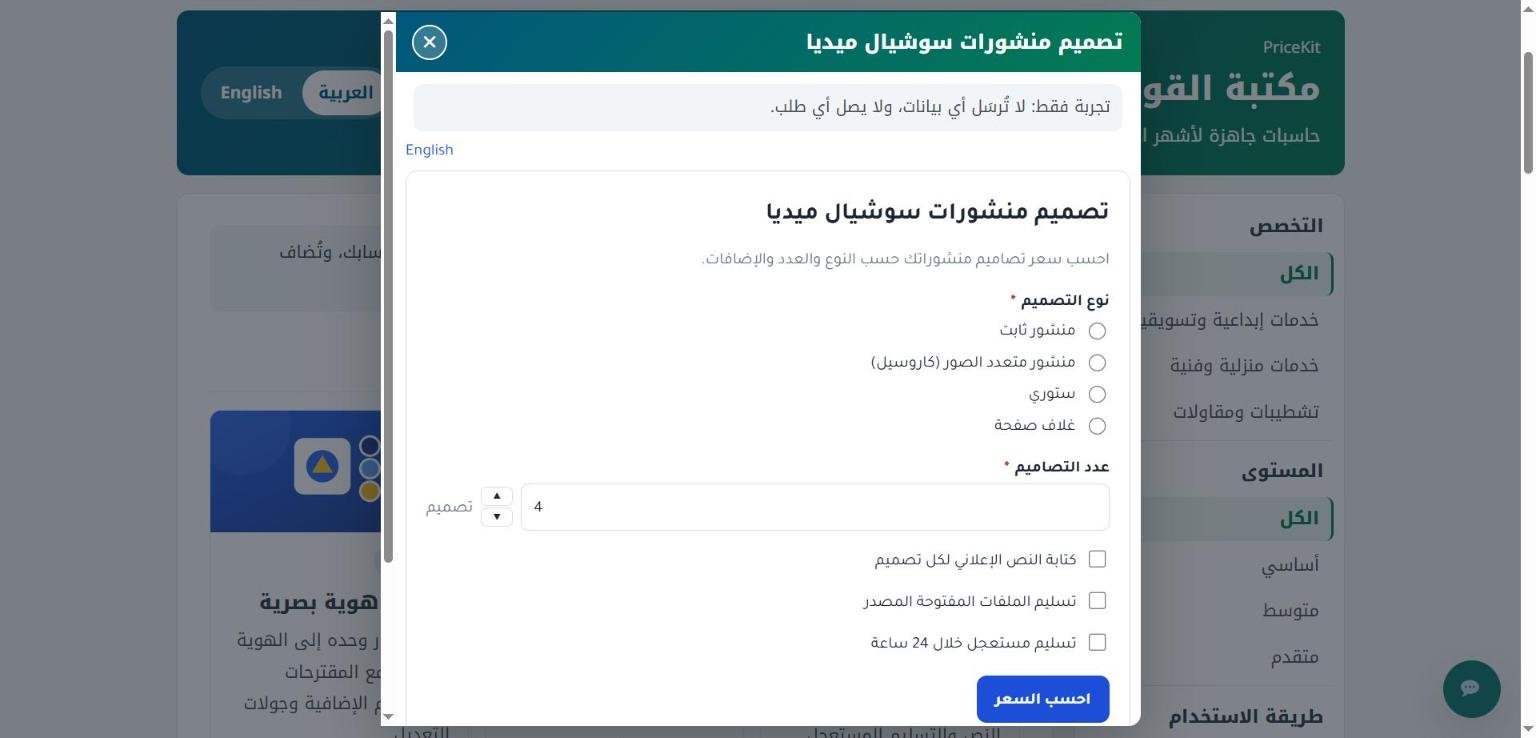
- الحقول والخيارات، وزر احسب السعر والسعر.
- لا توجد بيانات تواصل ولا زر إرسال ولا نص خصوصية.
- ملاحظة واضحة: «هذه حاسبة تجريبية لعرض طريقة الحساب فقط، ولا يُرسَل منها أي طلب.»
لا يصلك أي طلب من هذه الحاسبة إطلاقًا: الخادم نفسه يرفض أي محاولة إرسال لهذا الرابط، حتى لو حاول أحد الإرسال بطريقة أخرى.
فعّل «تجربة فقط»
- افتح المواقع والمطورين ← موقعك والـ API.
- في الحاسبات الظاهرة على موقعك اضغط تخصيص بجانب الحاسبة.
- فعّل تجربة فقط (بلا إرسال). لا تحتاج تفعيل إعدادات خاصة لهذه الحاسبة لهذا الخيار.
- اضغط حفظ، ثم انسخ كود التضمين والصقه في صفحتك.
تجد الخيار نفسه عند إنشاء رابط جديد من نوع على موقعي، وفي تعديل الإعدادات لأي رابط موقع في صفحة طلبات العملاء ← تبويب الروابط.
اجعل الحاسبة تُظهر السعر: إذا كانت إعداداتها إرسال الطلب للمراجعة دون إظهار سعر فلن يرى الزائر سعرًا ولا زر إرسال، فلن يجد ما يفعله. اختر إظهار السعر النهائي عند الطلب في إعدادات العرض أو في إعدادات الحاسبة الخاصة.
متى تستخدمه؟
- معرض نماذج: مصمم يعرض حاسبة «تصميم منشورات» نموذجية: 10 منشورات بـ $15 للمنشور = $150، ليفهم الزائر طريقة التسعير قبل التواصل.
- مقال أو صفحة شرح: مقاول دهانات يضع حاسبة توضيحية في مقال عن تكلفة الدهان.
- عرض قوالب: بهذه الطريقة تعمل حاسبات «جرّبها الآن» في مكتبة القوالب.
إذا أردت لاحقًا استقبال الطلبات من الحاسبة نفسها، ألغِ تجربة فقط (بلا إرسال) واحفظ، فيعود قسم بيانات التواصل وزر الإرسال دون تغيير الكود.
تعمل «تجربة فقط» في كود التضمين وفي إضافة ووردبريس (الإصدار 1.2.0 أو أحدث): تظهر الحقول والسعر فقط، بلا بيانات تواصل ولا زر إرسال.
لمعرفة كود التضمين وأماكن لصقه اقرأ حاسباتك على موقعك.
Show a calculator visitors can try and price without sending a request, ideal for showcasing sample calculators.
Sometimes you want visitors to try a calculator and watch the price change without sending a request: sample calculators in your portfolio, a demo calculator inside an article, or a showcase of how you price. That is what the Try only (no sending) setting of “On my website” links is for.
What visitors see
- The fields and options, the Calculate price button and the price.
- No contact details, no send button and no privacy text.
- A clear note: “This is a demo calculator that only shows how the price is worked out; no request is sent from it.”
No request ever reaches you from this calculator: PriceKit’s server refuses any request for this link, even if someone tries to send one another way.
Turn on Try only
- Open Websites & developers → Website & API.
- Under Calculators on your website, press Customise next to the calculator.
- Tick Try only (no sending). You do not need to tick Settings of its own for this calculator for this option.
- Press Save, then copy the embed code and paste it into your page.
The same option appears when you create a new On my website link, and in Edit settings for any website link on Customer requests → Links.
Make sure the calculator shows the price. If it is set to Send the request for review without showing a price, visitors see neither a price nor a send button, so there is nothing for them to do. Choose Show the final price on request in Display settings or in the calculator’s own settings.
When to use it
- A portfolio of samples: a designer shows a sample “Social media posts” calculator: 10 posts at $15 each = $150, so visitors understand the pricing before getting in touch.
- An article or guide: a painting contractor adds a demo calculator to an article about painting costs.
- A template showcase: this is how the “Try it now” calculators of the template library work.
If you later want requests from the same calculator, untick Try only (no sending) and save: the contact section and send button come back without changing the code.
Try only works with the embed code and with the WordPress plugin (version 1.2.0 or later): only the fields and the price show, with no contact details or send button.
For the embed code and where to paste it, see Your calculators on your website.
لم تجد جوابك؟Didn’t find your answer?
اطّلع على الأسئلة الشائعة، أو جرّب قالباً جاهزاً، أو راسلنا وسنرد عليك في أقرب وقت.See the FAQ, try a ready template, or write to us and we will answer as soon as we can.
الأسئلة الشائعةFAQ مكتبة القوالبTemplate library تواصل معناContact us