
اجعل الحاسبة تتصرف تلقائيًا: أظهر حقلًا أو أخفه، وفعّل بند سعر أو ألغه، بشروط «كل الشروط» أو «أي شرط»، مع أمثلة.
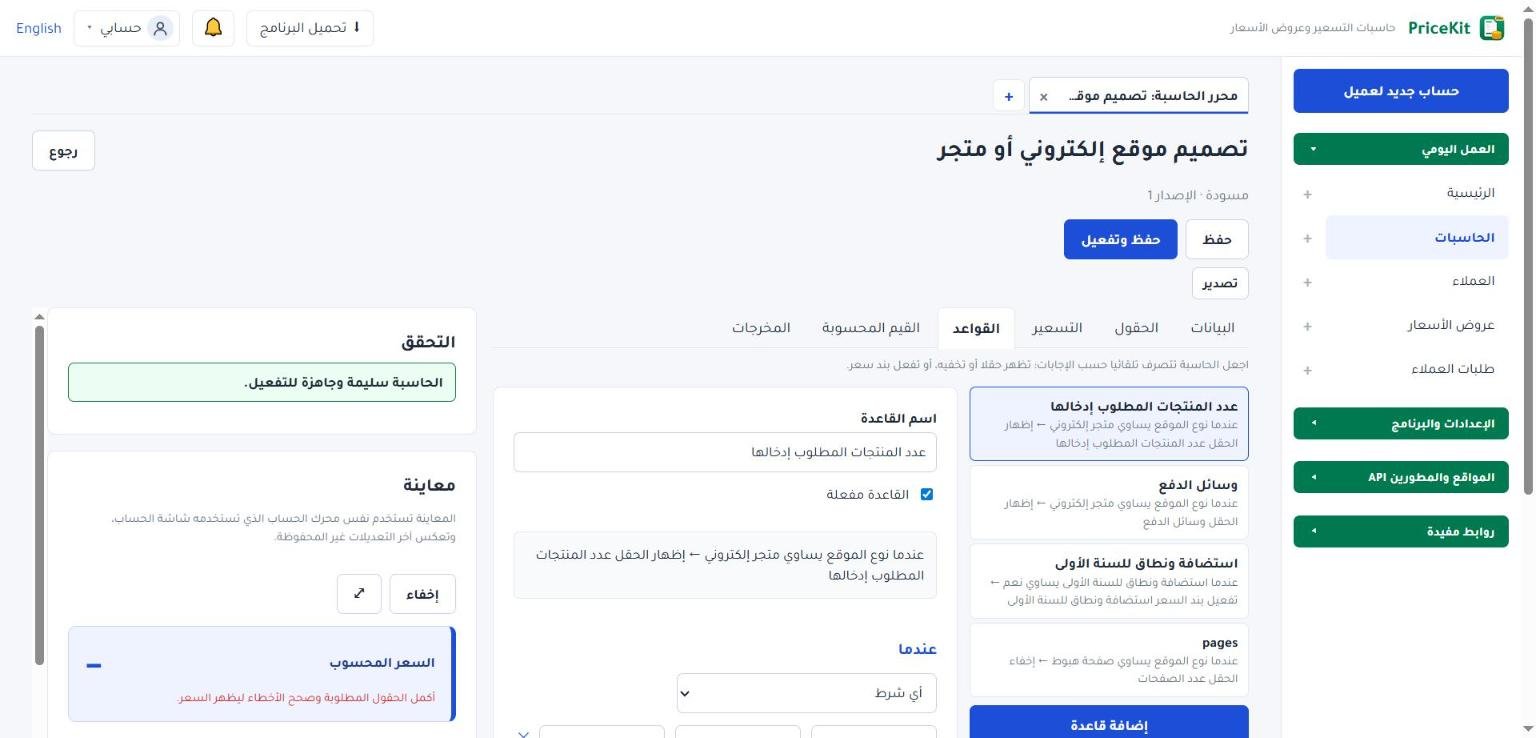
القواعد تجعل الحاسبة تتصرف تلقائيًا حسب إجابات العميل: تُظهر حقلًا أو تخفيه، أو تفعّل بند سعر أو تلغيه. كل قاعدة من جزأين: عندما (الشروط) وإذن (الإجراءات).
أنشئ قاعدة
- افتح تبويب القواعد واضغط إضافة قاعدة.
- اكتب اسم القاعدة بوضوح، مثل «إظهار عدد النسخ عند طلب الطباعة».
- تحت عندما اختر كل الشروط (يجب أن تتحقق جميعها) أو أي شرط (يكفي شرط واحد).
- في كل شرط اختر الحقل، ثم المقارنة، ثم القيمة. أضف شروطًا أخرى بزر إضافة شرط.
- تحت إذن اختر الإجراء والعنصر الذي يطبّق عليه. أضف إجراءات أخرى بزر إضافة إجراء.
تظهر القاعدة ملخصة في جملة مقروءة مثل «عندما تحتاج طباعة؟ يساوي نعم ← إظهار الحقل عدد النسخ». ولإيقافها مؤقتًا دون حذفها ألغِ القاعدة مفعلة.
الإجراءات
- إظهار الحقل وإخفاء الحقل: يظهر الحقل للعميل أو يختفي.
- تفعيل الحقل وتعطيل الحقل: الحقل المعطّل يبقى ظاهرًا لكن لا يمكن تعديله.
- تفعيل بند السعر وإلغاء بند السعر: يدخل البند في السعر أو يخرج منه.
المقارنات حسب نوع الحقل
- رقم ومبلغ وتاريخ: يساوي، لا يساوي، أكبر من، أكبر من أو يساوي، أصغر من، أصغر من أو يساوي.
- نص: يساوي، لا يساوي، يحتوي، لا يحتوي.
- اختيار واحد ونعم / لا: يساوي، لا يساوي.
- اختيارات متعددة: يحتوي، لا يحتوي.
ولكل الأنواع أيضًا فارغ وغير فارغ. ويمكن أن يكون موضوع الشرط قيمة محسوبة من الحقول.
مثال 1: إظهار حقل عند الحاجة
لديك حقل «تحتاج طباعة؟» من نوع نعم / لا، وحقل «عدد النسخ» من نوع رقم. ألغِ ظاهر في البداية في «عدد النسخ»، ثم أنشئ القاعدة: عندما «تحتاج طباعة؟» يساوي نعم ← إظهار الحقل «عدد النسخ».
مثال 2: تفعيل رسوم الاستعجال
حقل «سرعة التسليم» من نوع اختيار واحد: عادي ومستعجل. أضف بند «رسوم الاستعجال» بطريقة نسبة مئوية: إضافة 30% من المجموع الأساسي، في مرحلة الإضافات والخصومات، وألغِ مفعل تلقائيا (بدون قاعدة). ثم القاعدة: عندما «سرعة التسليم» يساوي مستعجل ← تفعيل بند السعر «رسوم الاستعجال». طلب أساسه $170 يصبح $221.
مثال 3: عدة شروط معًا
تريد خصم كمية 10% فقط عندما يكون عدد المنشورات 20 أو أكثر ومستوى التصميم «عادي». اختر كل الشروط وأضف الشرطين: «عدد المنشورات» أكبر من أو يساوي 20، و«مستوى التصميم» يساوي عادي ← تفعيل بند السعر «خصم الكمية». 20 منشورًا × $15 = $300 تصبح $270. ولو اخترت أي شرط لطُبّق الخصم عند تحقق أحدهما فقط.
نقاط مهمة
- قيمة الحقل المخفي أو المعطّل لا تُحتسب في السعر ولا في القيم المحسوبة، حتى لو كتبها العميل قبل إخفائه.
- عند تفعيل يدخل في التسعير لحقل نعم / لا ينشئ PriceKit قاعدة تلقائيًا باسم «سعر عند اختيار «…»».
لا تجعل قاعدتين تُظهران وتُخفيان الحقل نفسه في الوقت نفسه، أو تفعّلان وتلغيان البند نفسه؛ سيظهر خطأ «قواعد متعارضة تطبق في نفس الوقت».
Make the calculator react on its own: show or hide a field and switch a price item on or off, with all/any conditions and examples.
Rules make the calculator react to the customer’s answers on its own: show or hide a field, or switch a price item on or off. Every rule has two parts: When (the conditions) and Then (the actions).
Create a rule
- Open the Rules tab and click Add rule.
- Give it a clear Rule name, such as “Show copies when printing is needed”.
- Under When, choose All conditions (every condition must be true) or Any condition (one is enough).
- For each condition pick the field, the comparison and the value. Add more with Add condition.
- Under Then, choose the action and the item it applies to. Add more with Add action.
Each rule is summarised in a readable line, such as “When Need printing? equals Yes ← Show field Number of copies”. To pause a rule without deleting it, untick Rule enabled.
Actions
- Show field and Hide field: the field appears to the customer or disappears.
- Enable field and Disable field: a disabled field stays visible but cannot be changed.
- Activate price item and Deactivate price item: the item is added to the price or left out.
Comparisons by field type
- Number, money and date: equals, does not equal, greater than, greater than or equal, less than, less than or equal.
- Text: equals, does not equal, contains, does not contain.
- Single choice and Yes / No: equals, does not equal.
- Multiple choice: contains, does not contain.
Every type also offers is empty and is not empty. A condition can also test a calculated value made from fields.
Example 1: show a field only when needed
You have a Yes / No field “Need printing?” and a Number field “Number of copies”. Untick Visible initially on “Number of copies”, then create the rule: When “Need printing?” equals Yes ← Show field “Number of copies”.
Example 2: switch on a rush fee
A Single choice field “Delivery speed” has Normal and Rush. Add a “Rush fee” item using Percentage: a 30% surcharge on the base subtotal, in the Surcharges & discounts stage, with Active by default (without a rule) unticked. Then the rule: When “Delivery speed” equals Rush ← Activate price item “Rush fee”. A $170 job becomes $221.
Example 3: several conditions together
You want a 10% volume discount only when there are 20 posts or more and the design level is “Standard”. Choose All conditions and add both: “Number of posts” greater than or equal 20, and “Design level” equals Standard ← Activate price item “Volume discount”. 20 posts × $15 = $300 becomes $270. With Any condition, the discount would apply when either one is true.
Good to know
- The value of a hidden or disabled field is not counted in the price or in calculated values, even if the customer typed it before it was hidden.
- Turning on Used in pricing for a Yes / No field creates a rule for you, named “Price when “…” is Yes”.
Do not let two rules show and hide the same field, or activate and deactivate the same item, at the same time; you will get the error “Conflicting rules apply at the same time”.
لم تجد جوابك؟Didn’t find your answer?
اطّلع على الأسئلة الشائعة، أو جرّب قالباً جاهزاً، أو راسلنا وسنرد عليك في أقرب وقت.See the FAQ, try a ready template, or write to us and we will answer as soon as we can.
الأسئلة الشائعةFAQ مكتبة القوالبTemplate library تواصل معناContact us